

You finally got that new monitor, adjusted your chair, and organized your cables, yet you still end up squinting by mid-afternoon or rubbing your eyes after a long work session. The culprit isn’t your screen—it’s likely your desk placement and lighting setup. Poor positioning creates glare, harsh shadows, and eye strain that silently drains your energy. The good news is that fixing this doesn’t require a renovation or expensive equipment; it simply requires understanding how light interacts with your workspace. If you’re dealing with persistent eye fatigue despite good habits, check this out for a lighting solution designed specifically to reduce digital eye strain while you work. Before upgrading your gear, though, let’s get the fundamentals right so you can make the most of both natural sunlight and your existing lamps.
Quick Answer
Position your desk perpendicular to windows so natural light comes from the side, never directly behind your monitor or facing you. Your primary light source should be placed at a 45-degree angle to your dominant hand, preferably overhead or at desk level but always out of your direct line of sight. For artificial lighting, use a warm-to-neutral white bulb (2700K–4000K) positioned to illuminate your workspace without casting shadows on your documents. The key rule: your eyes should never see the bare bulb or the bright sky directly, and your screen should be the brightest object in your peripheral vision.
Key Takeaways
- Windows should be beside your desk, not behind your monitor or directly in front of you, to prevent glare and excessive contrast.
- Combine overhead lighting with a task lamp to eliminate shadows, but ensure the lamp is positioned on the opposite side of your writing hand.
- Use blinds or sheer curtains to diffuse harsh sunlight rather than working in complete darkness or bright direct light.
- Your monitor should be positioned so the brightest light source in the room is not visible in your peripheral vision.
- Choose adjustable lighting with color temperature control to match your work type and time of day.
Why Desk Positioning Matters More Than You Think
Lighting isn’t just about visibility—it directly affects your visual comfort, productivity, and even your circadian rhythm. When your desk faces a window, your pupils constantly constrict and dilate as clouds pass or the sun shifts, forcing your eye muscles to work overtime. When your back faces a window, you cast shadows over your workspace, making it harder to see documents and increasing the contrast between your screen and the dark area around it. Both scenarios lead to eye fatigue, headaches, and reduced focus.
The ideal position creates a balanced light environment where the brightest area in your field of view is your task—whether that’s reading, typing, or reviewing spreadsheets. Your brain naturally prioritizes visual information, so if your eyes keep catching bright glare or dark shadows, they work harder to process what you’re actually trying to focus on.
The 90-Degree Rule for Windows
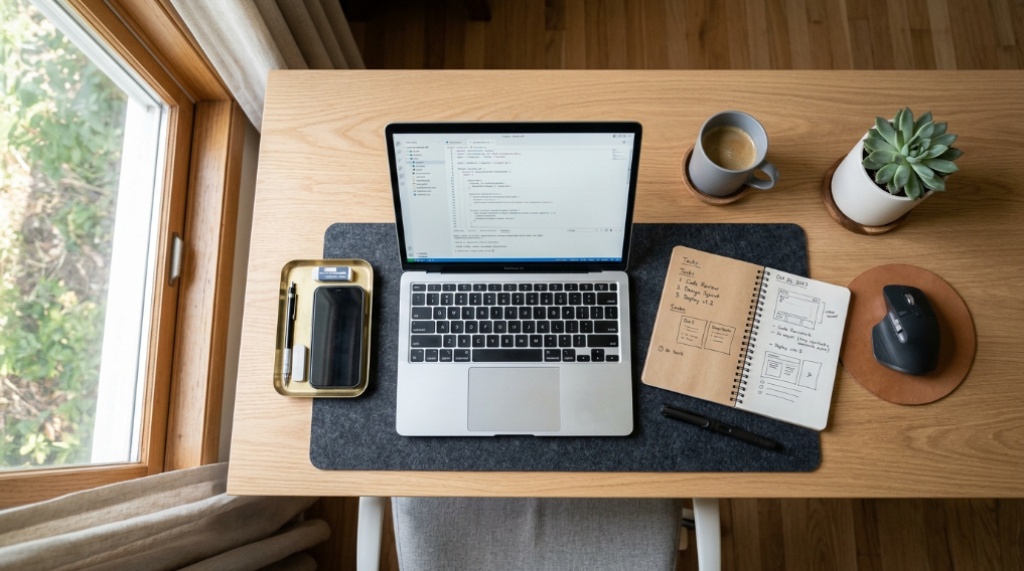
Place your desk so that the window is at a 90-degree angle to your monitor. This means the window is directly to your left or right. This positioning ensures that natural light washes across your workspace evenly without hitting your screen directly. If you’re right-handed, position the window to your left so your writing hand doesn’t cast shadows on your papers. Left-handed users should do the opposite. This simple adjustment reduces glare by up to 80% compared to facing a window directly.
What to Do When You Can’t Move Your Desk
Not everyone has the luxury of rearranging their furniture. If your desk is fixed against a wall with a window behind your monitor, use a matte screen filter to reduce reflections. If the window is directly in front of you, close the blinds during peak sunlight hours and rely on artificial lighting instead. You can also mount a large anti-glare panel behind your monitor to block the direct light path. Another practical fix: raise your monitor slightly so the top of the screen is at or just below eye level, then tilt it downward by 10–20 degrees. This reduces the angle at which ambient light reflects off the glass.
Mastering Artificial Lighting Placement
Artificial lighting gives you full control, but only if you position it correctly. The most common mistake people make is relying solely on a ceiling light, which creates uneven illumination and harsh shadows. The second most common mistake is placing a desk lamp directly in front of the monitor, which reflects off the screen and reduces contrast.
Your goal is to create a layered lighting setup with three distinct light sources: ambient (overhead), task (desk lamp), and accent (bias lighting). Each serves a different purpose, and together they eliminate the extremes that cause eye strain.
Task Lamp Positioning Rules
Place your task lamp on the opposite side of your dominant hand. If you write with your right hand, the lamp goes on your left. The light should hit your work surface at a 45-degree angle, meaning the lamp head should be positioned slightly above and to the side of your documents. This prevents both shadows and direct glare into your eyes. The lamp should be positioned so that the bulb is never visible when you’re looking forward at your monitor, Once your lighting is properly balanced and your workspace is fully optimized for productivity, you can enhance the room’s aesthetic appeal by adding framed typography prints for professional offices to create a polished, inspiring environment.
The Overhead Lighting Mistake
Overhead lights alone are rarely sufficient for computer work because they create a bright ceiling area that your peripheral vision constantly registers. This forces your eyes to continuously adapt between the bright room and your dimmer screen. If you must use overhead lighting, install a dimmer switch and keep it at 50–70% brightness. Better yet, add a floor lamp with an upward-facing shade in the corner of the room to bounce light off the ceiling for softer, more diffuse illumination.
Bias Lighting for Screen Comfort
Bias lighting involves placing a soft light source behind your monitor, facing the wall. This reduces the contrast between the bright screen and the dark wall behind it, which is a major contributor to digital eye strain. A simple LED strip attached to the back of your monitor, set to a warm white or neutral color, can reduce eye fatigue by 30–50% during evening work sessions. The light should be just bright enough to create a subtle halo around the monitor without casting light onto your screen.
Choosing the Right Bulbs and Color Temperature
Not all light is created equal. The color temperature of your bulbs, measured in Kelvin (K), dramatically affects both visual comfort and alertness. Lower Kelvin numbers produce warm, yellow-orange light similar to candlelight. Higher Kelvin numbers produce cool, blue-white light similar to daylight.
For daytime work, choose bulbs in the 4000K–5000K range. This mimics natural daylight, keeps you alert, and reduces eye strain during tasks that require sustained attention. For evening work, switch to 2700K–3000K bulbs. Cool blue light in the evening suppresses melatonin production and can interfere with your sleep cycle, so warming up your lighting as the day progresses supports both your eyes and your circadian rhythm.
Brightness and Flicker Considerations
Brightness is measured in lumens, not watts. A typical desk task lamp should provide 400–600 lumens for reading and detailed work. However, brightness alone doesn’t determine comfort—flicker does. Many cheap LED bulbs flicker at frequencies imperceptible to the naked eye, but your brain still registers the fluctuation, causing headaches and eye strain over time. Look for bulbs labeled “flicker-free” or those with a high color rendering index (CRI) of 90 or above. High-CRI bulbs render colors accurately, reducing the effort your eyes expend trying to distinguish shades and text.
Combining Natural and Artificial Light Effectively
The best lighting setup uses natural light for most of the day and supplements it with artificial light only when needed. During daylight hours, rely on window light but control it with blinds or sheer curtains. Fully open blinds in the morning when light is softer and more diffuse. As the sun gets higher and brighter, adjust the blinds to diffuse the light rather than blocking it entirely.
Your artificial lighting should complement the natural light, not compete with it. If your desk is near a window, position your task lamp so it fills in the shadows created by the natural light direction. For example, if your window is on your left, place your lamp on your right to balance the illumination. If you notice your screen reflecting the window, adjust your monitor angle slightly rather than closing the blinds entirely. A screen tilted down by 10–15 degrees usually eliminates most reflections while maintaining good posture.
Dealing with Mixed Lighting Scenarios
One common problem occurs when your monitor displays a white background (like a document or web page) but your room has warm yellow lighting. Your eyes must constantly adjust between the cool white screen and the warm room, causing fatigue. The solution is to match your screen’s color temperature to your ambient lighting. Most monitors and operating systems allow you to adjust color temperature. During the day, set your screen to a cooler setting; in the evening, switch to a warmer setting. Alternatively, use a monitor light bar that casts light directly onto your desk while keeping the rest of the room dimmer.
Desk Positioning for Specific Room Types
Different rooms present different lighting challenges. A home office with a large east-facing window will flood with bright morning light but become dim by afternoon. A basement office has no natural light and requires careful artificial lighting design. A corner office with windows on two sides creates complex glare patterns that change throughout the day.
For rooms with windows on two adjacent walls, position your desk in the corner where the two walls meet, facing outward into the room. This places the windows on both sides of you, creating balanced side lighting. For rooms with a single window, place your desk against the wall opposite the window, facing the window. This gives you a view outside while keeping the light source in front of you—but remember to use blinds to control glare. For rooms with no windows, create a lighting hierarchy: bright overhead ambient light, a focused task lamp, and a dim accent light in the periphery to reduce the “cave” feeling.
Frequently Asked Questions
Should I face my desk toward the window?
No. Facing a window directly creates excessive contrast between the bright window and your screen, causing eye strain. It also makes it difficult to see your screen during bright daylight. Position your desk perpendicular to the window instead, with the window to your side.
Is it better to work in a dark room with a bright screen?
No. Working in a completely dark room with a bright screen creates extreme contrast that forces your pupils to constantly adjust. This leads to rapid eye fatigue. Always have some ambient light in the room, even if it’s dim, to reduce the contrast ratio.
What color light is best for computer work?
Neutral white light around 4000K is best for computer work during the day. It provides balanced illumination without the harshness of cool blue light or the drowsiness induced by warm yellow light. In the evening, switch to warmer 2700K–3000K light to support your sleep cycle.
How far should my desk lamp be from my monitor?
Your desk lamp should be positioned at least 12–18 inches away from your monitor, placed to the side rather than in front. The light should illuminate your keyboard and documents without spilling onto your screen. If the lamp creates a reflection on your screen, move it further away or adjust its angle.
Can I use natural light as my only light source?
Yes, during daylight hours, natural light can be sufficient for most tasks. However, you’ll need artificial lighting for overcast days, early mornings, and evenings. Relying solely on natural light also means your lighting conditions constantly change, which can cause inconsistent visual comfort throughout the day.
Conclusion
Proper desk positioning for lighting isn’t complicated, but it requires deliberate attention to where your light sources sit relative to your eyes and screen. Start by moving your desk so windows are at a 90-degree angle to your monitor. Then layer your artificial lighting—ambient overhead light, a task lamp on the opposite side of your dominant hand, and bias lighting behind your monitor. Match your bulb color temperature to the time of day, and never let any light source shine directly into your eyes or reflect off your screen. These adjustments will reduce eye strain, improve focus, and make long work sessions noticeably more comfortable. Take a few minutes today to rearrange your setup; your eyes will thank you by the end of the week.


